
This article explains how to use the Grader security role and grade questions by leaving marks and feedback.
Grading process from Graders’ perspective
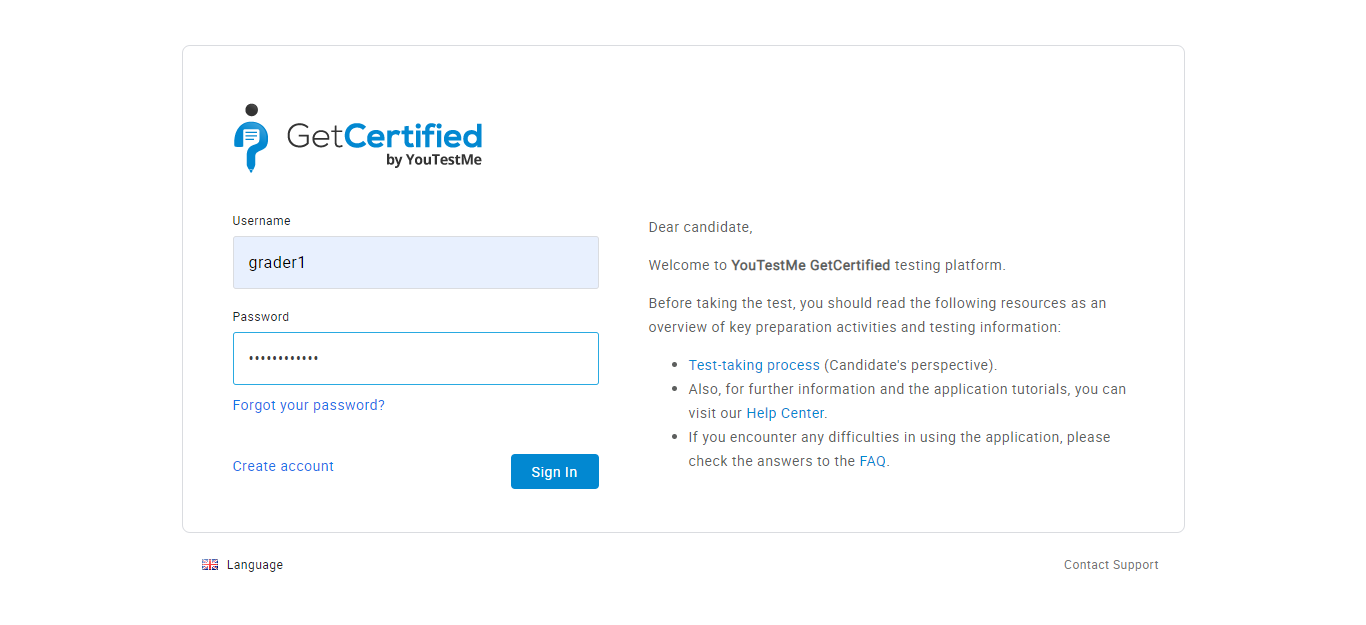
- Log in as grader1 with password Grader1234!#
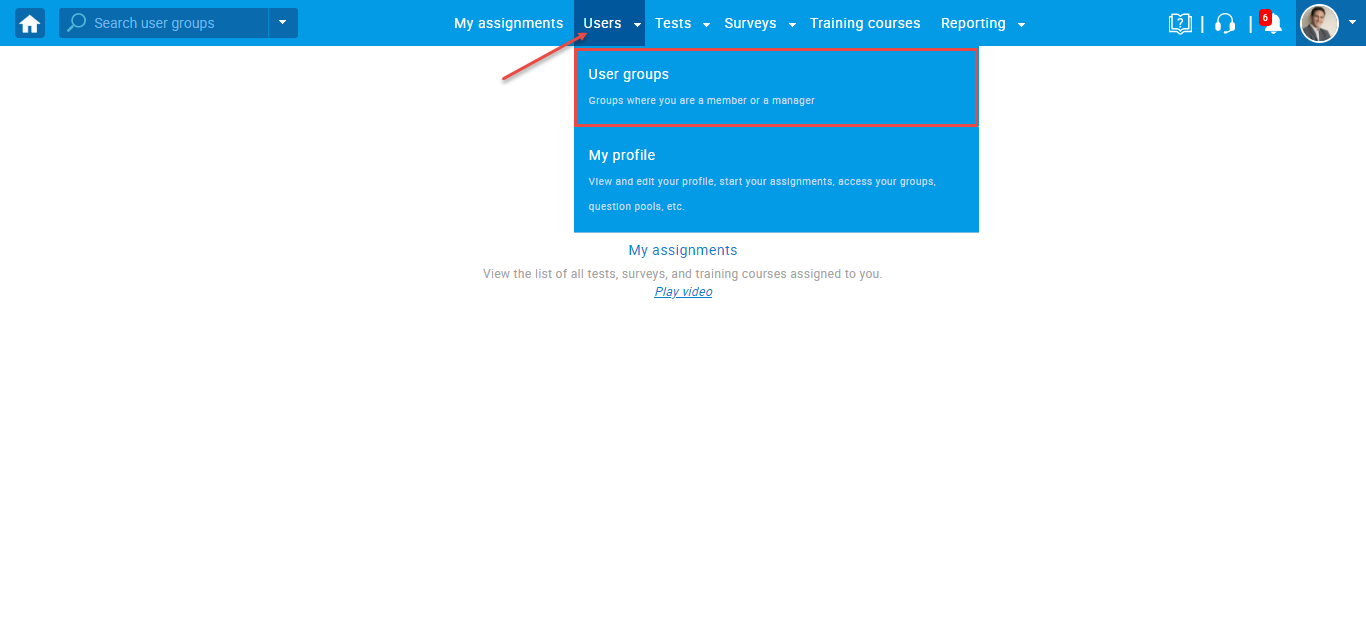
- On the Home page, navigate to Users and select User groups.
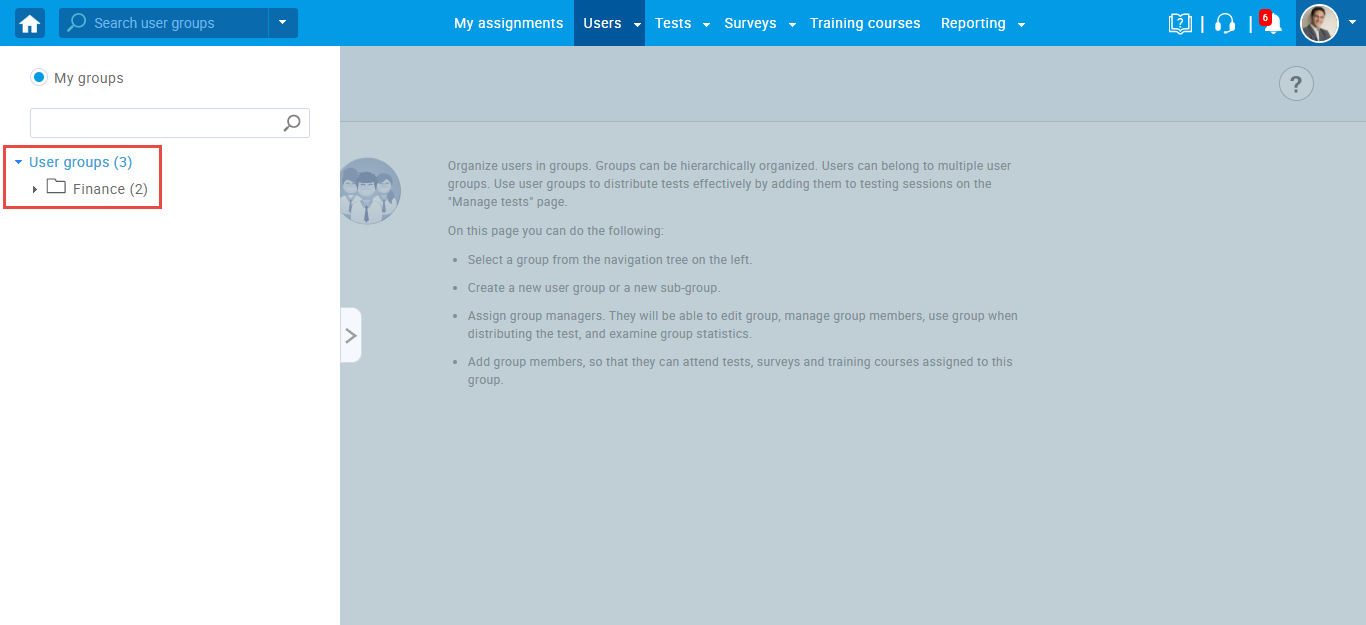
- Here, you can see the User group this grader manages. Click on it.
- The information about the group is displayed.
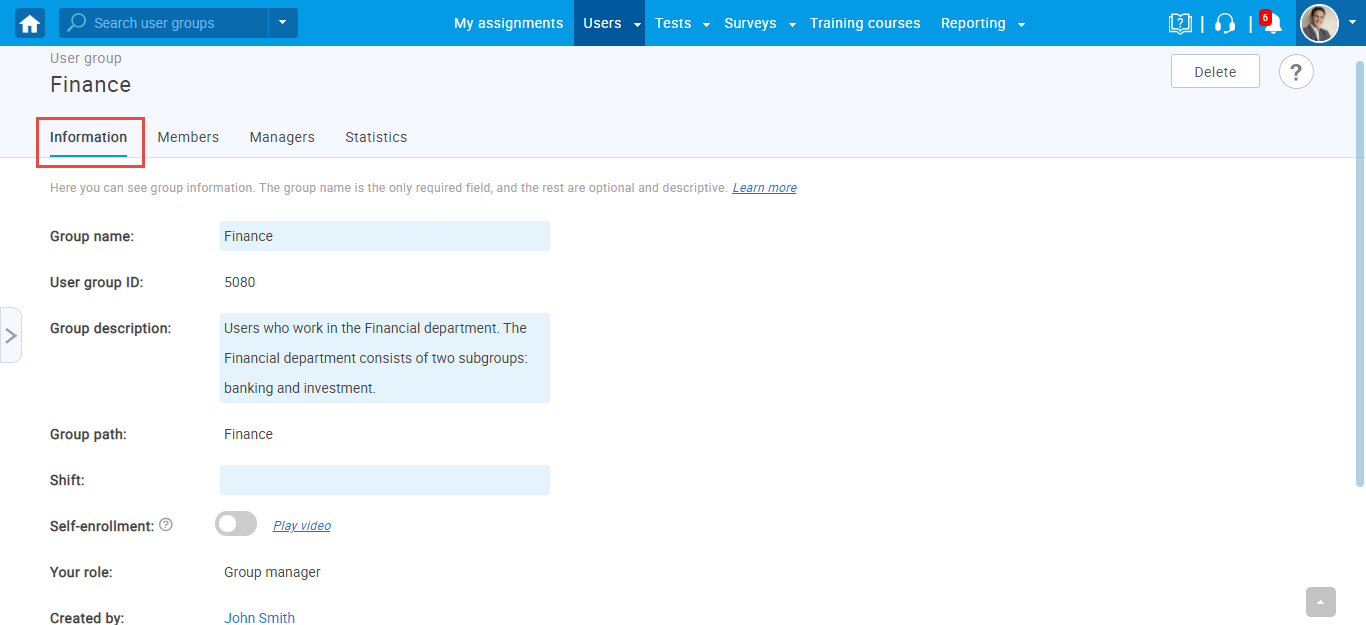
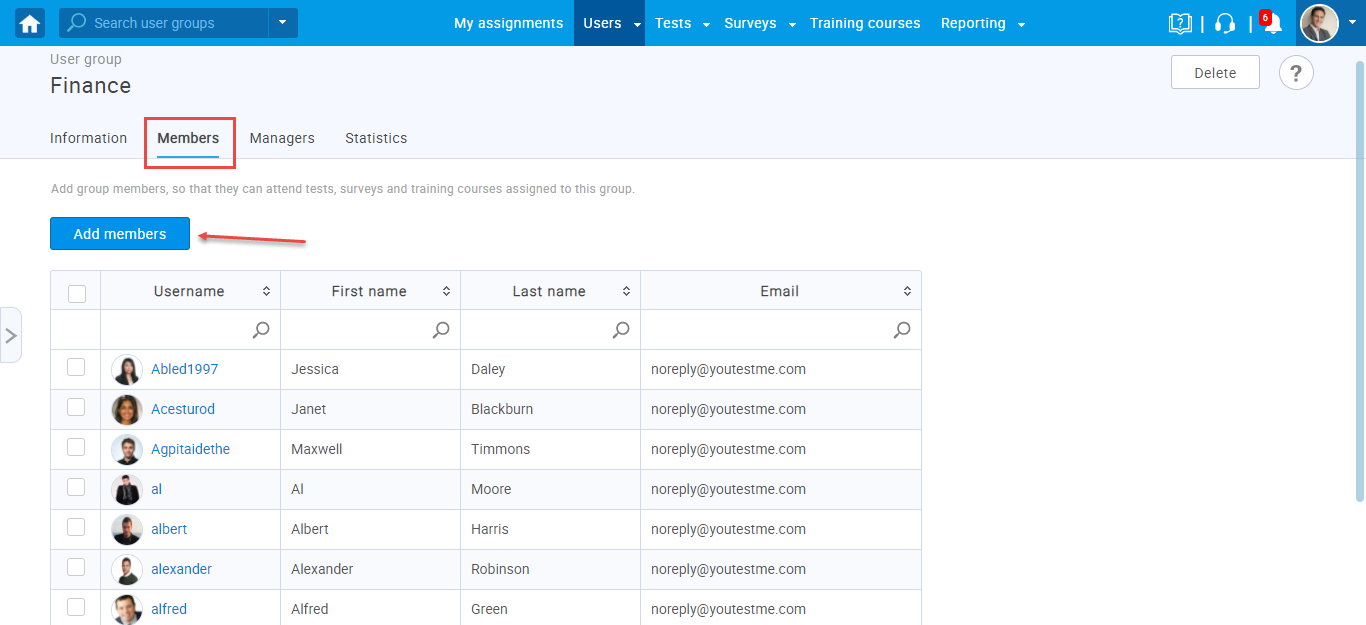
- Members are also displayed. You can add new members too.
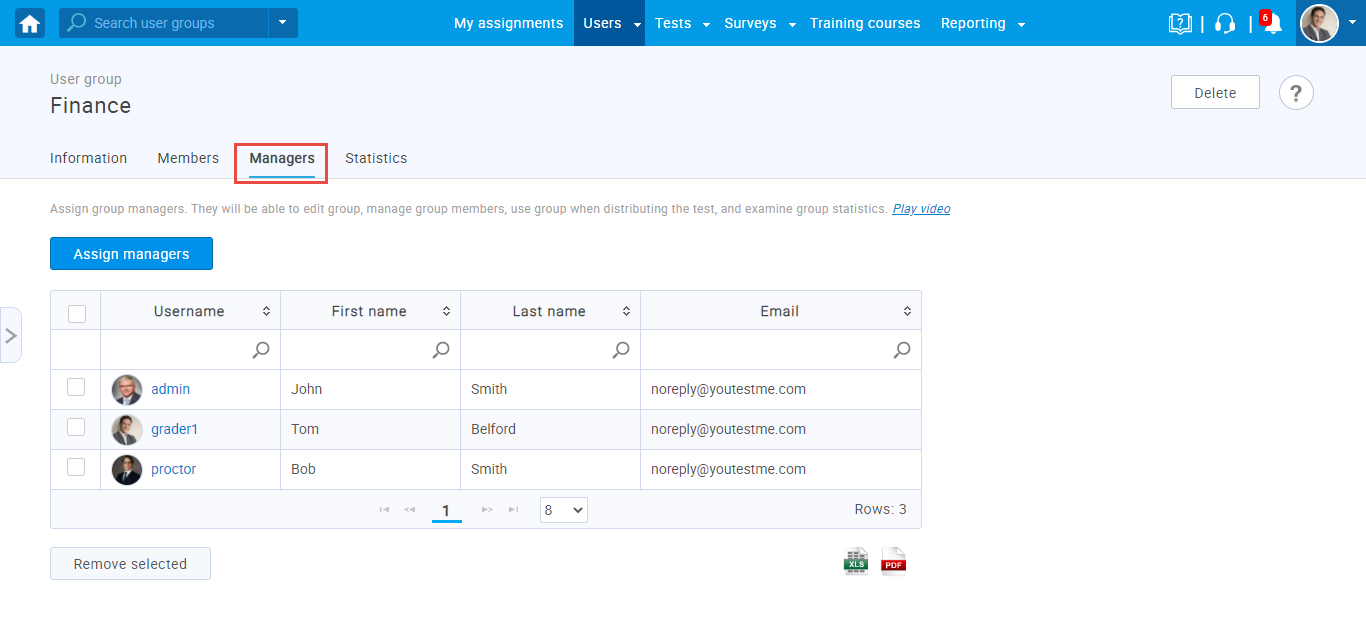
- User group managers can be displayed.
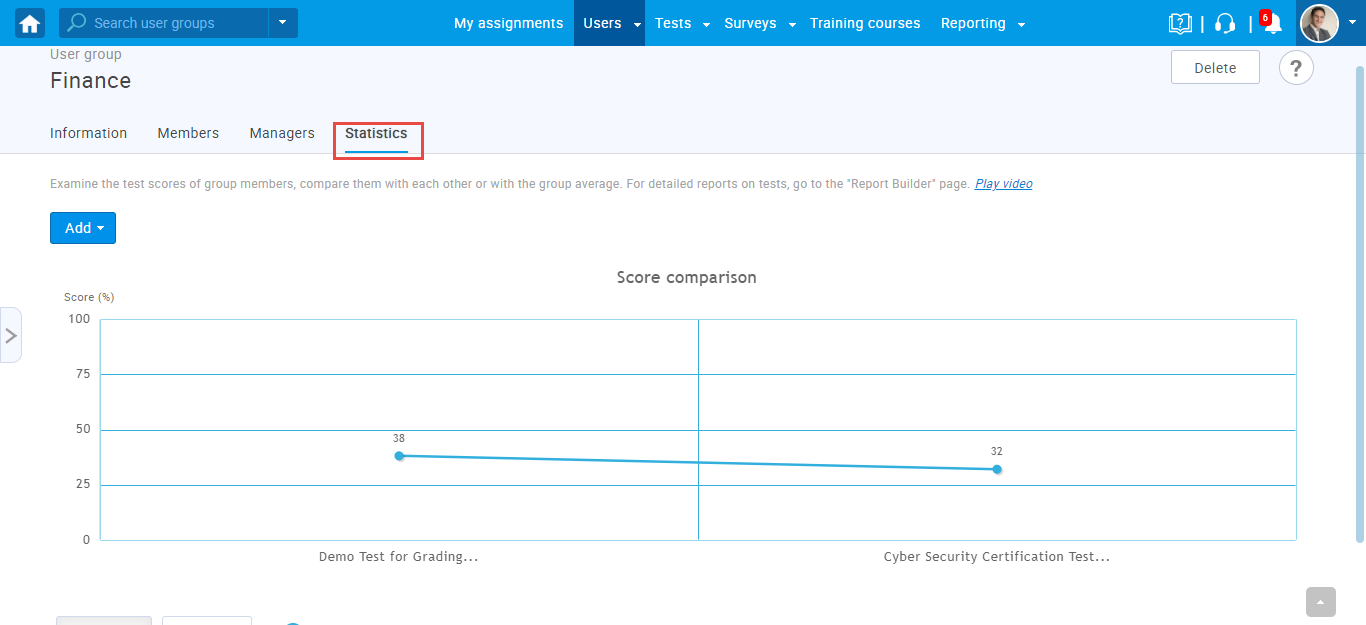
- Group Statistics can be displayed and you can see the average score of this group in tests.
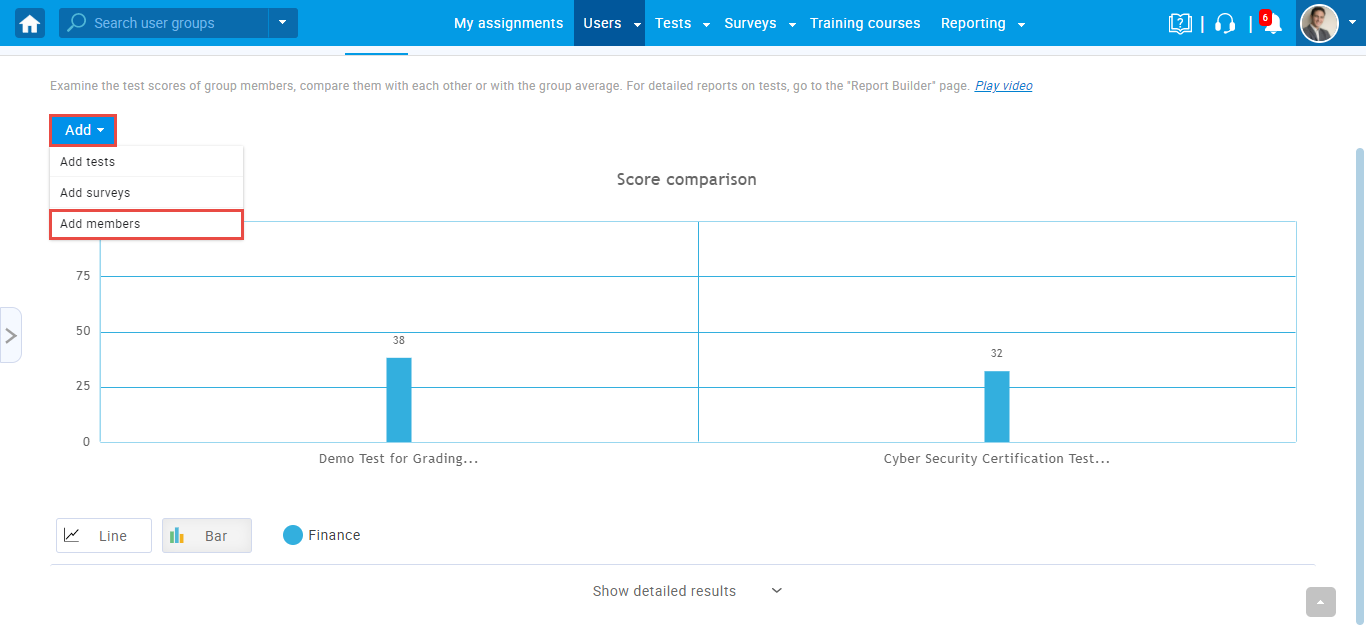
- Click on Add button and select Add members.
- Select this user and click confirm.
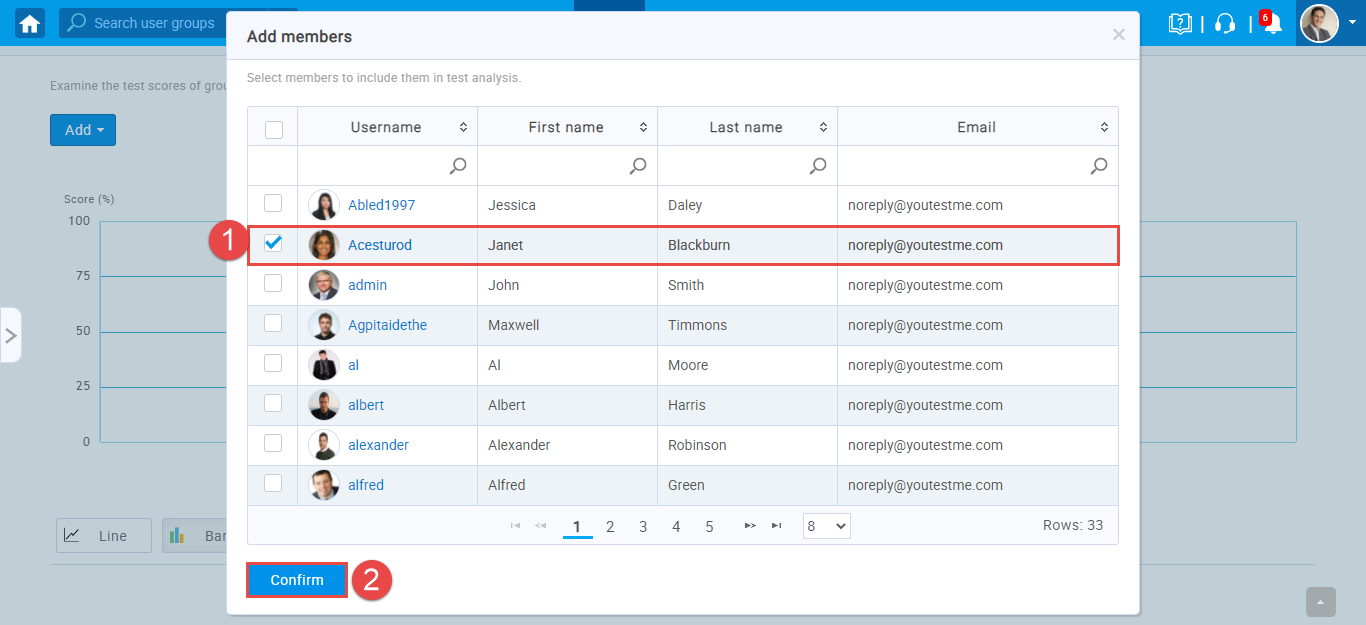
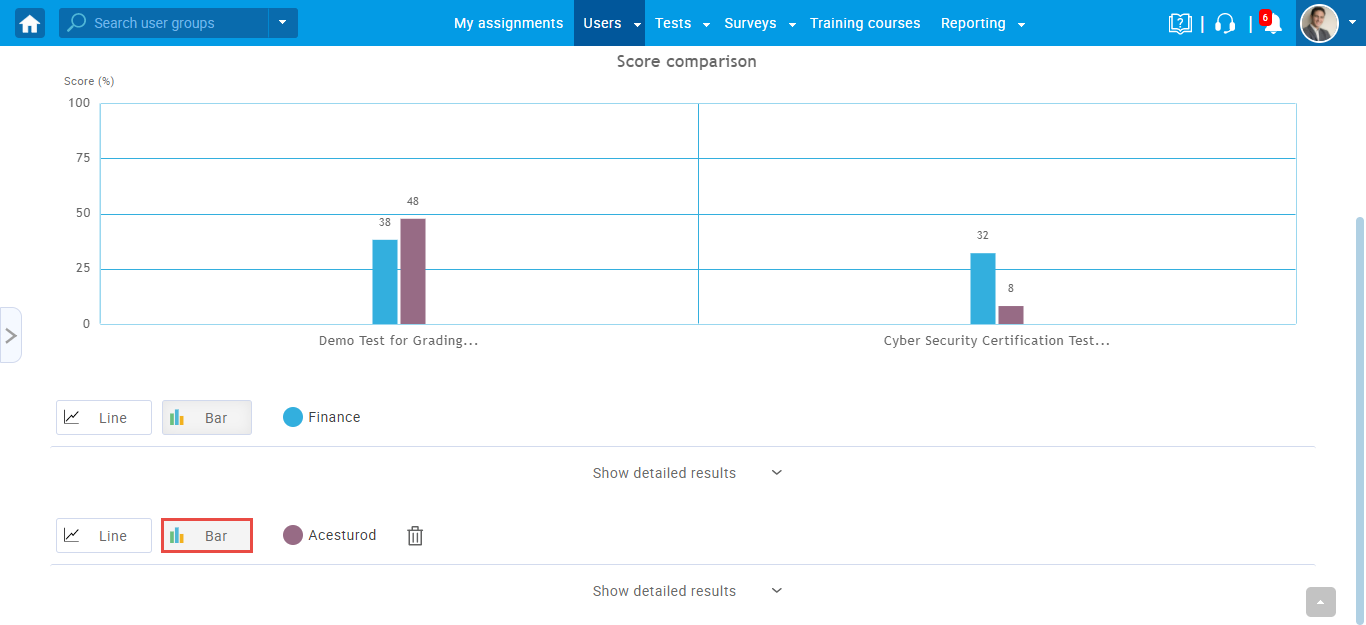
- You can click on Line or Bar chart to see results achieved by this user compared to the group average in these two tests.
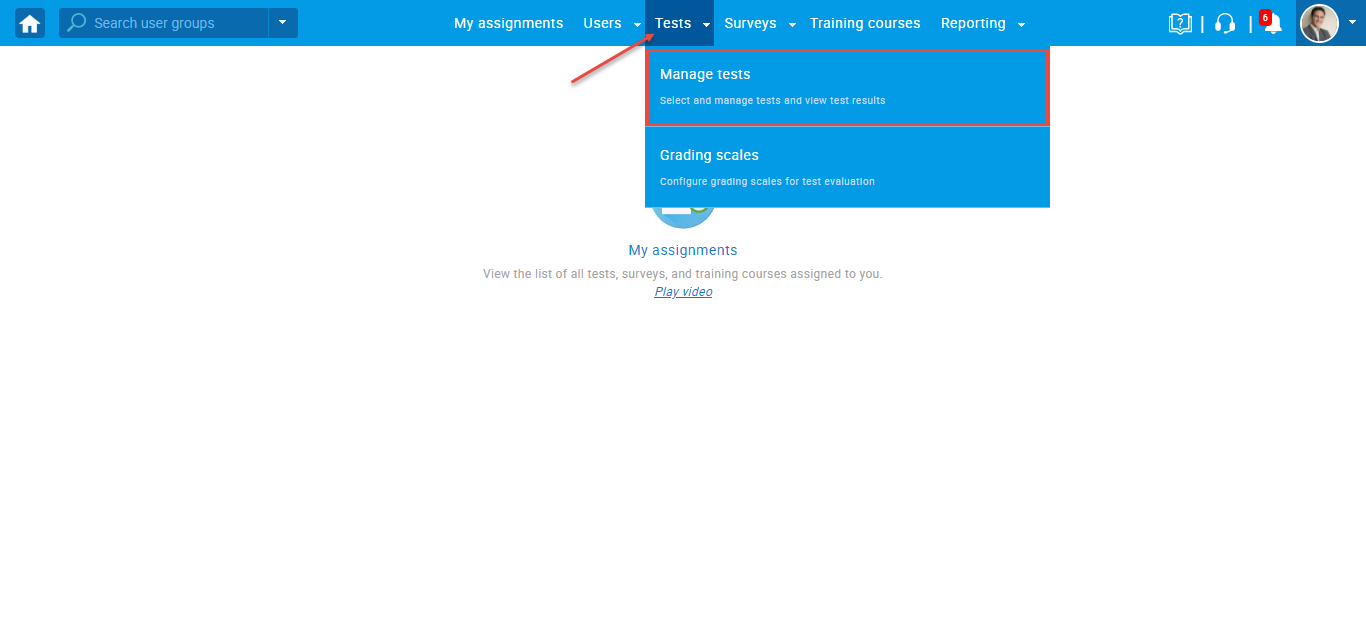
- Next, navigate to Tests and select Manage tests.
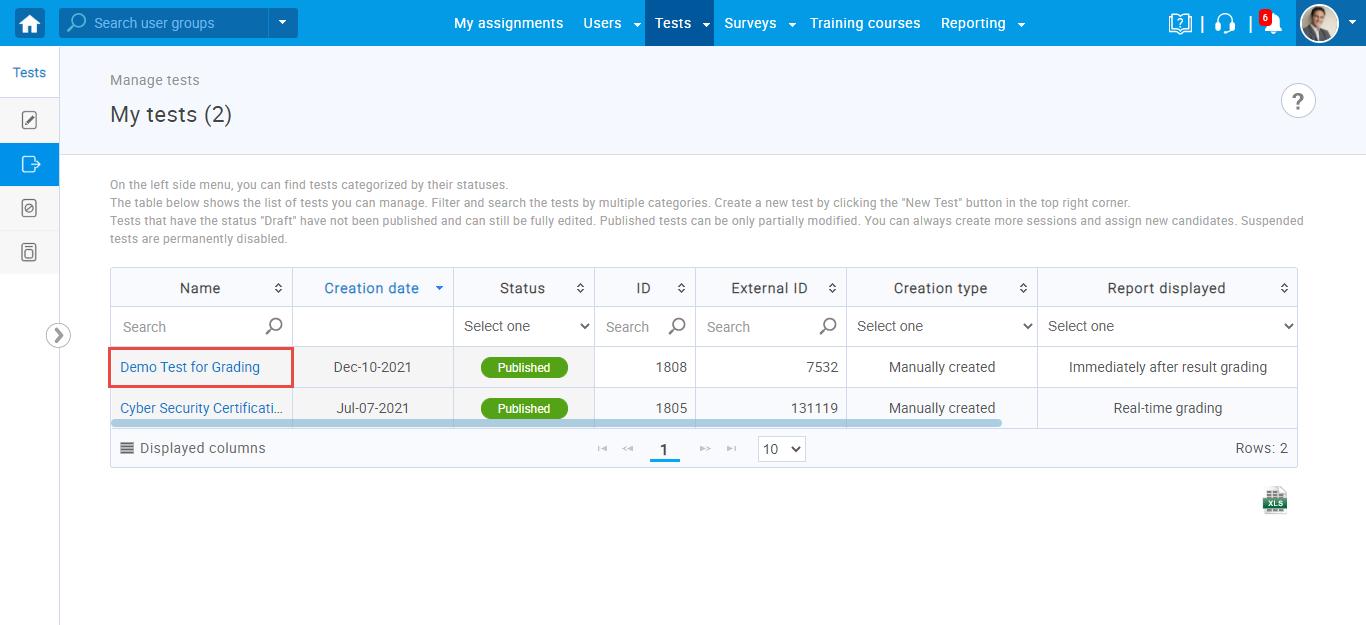
- Here, you can only see tests that this grader can manage. Select Demo Test for Grading.
- Select Testing sessions. Here you can only see the testing session of the user group this grader manages.
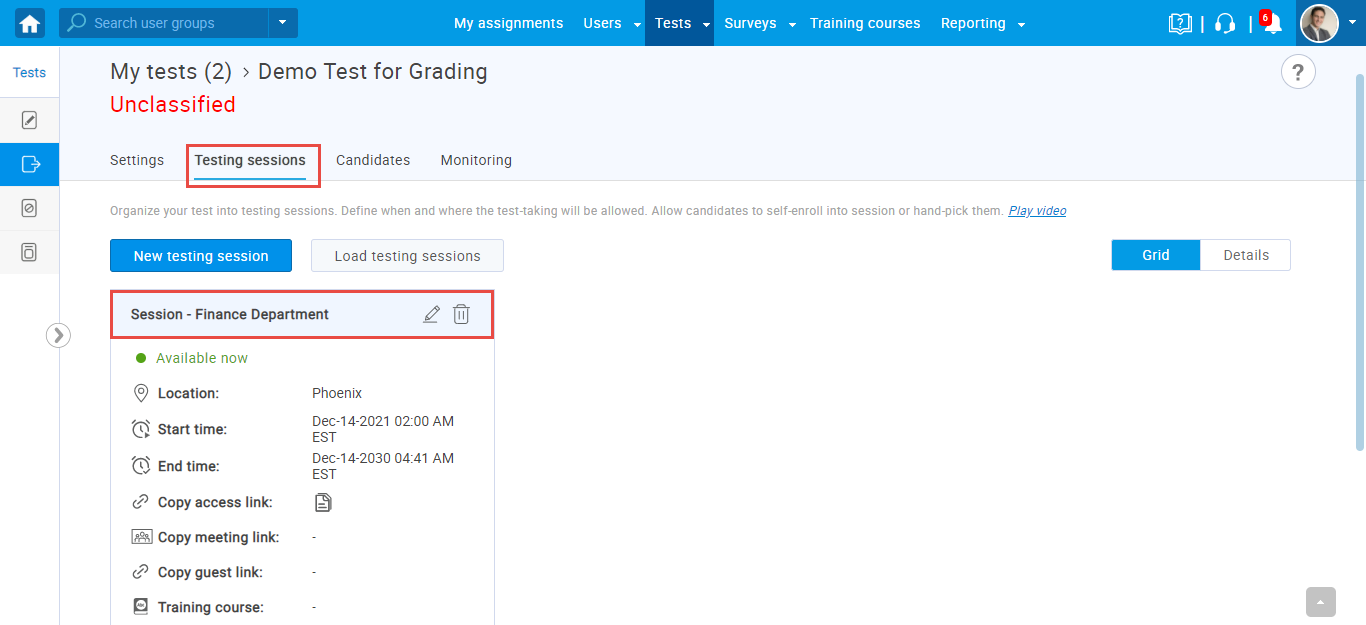
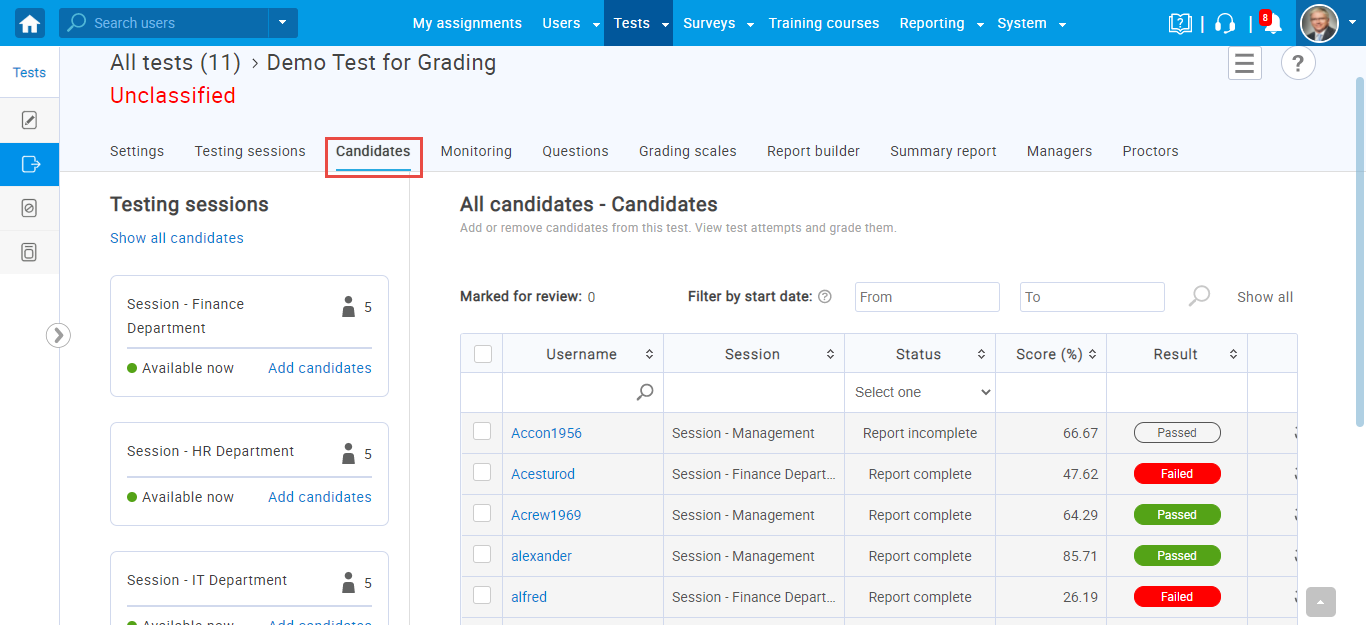
- When you select the Candidates tab, you can see candidates in the testing session of the user group this grader manages and their reports of test attempts:
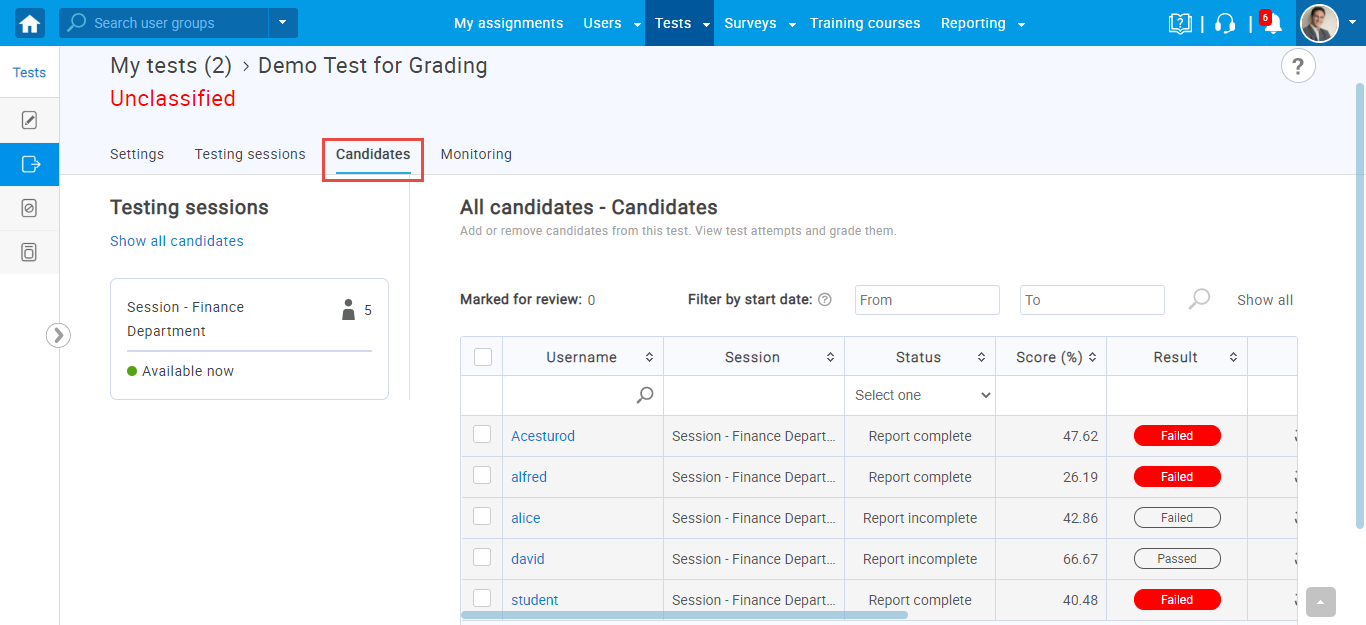
- You can see which candidates don’t have resolved grade
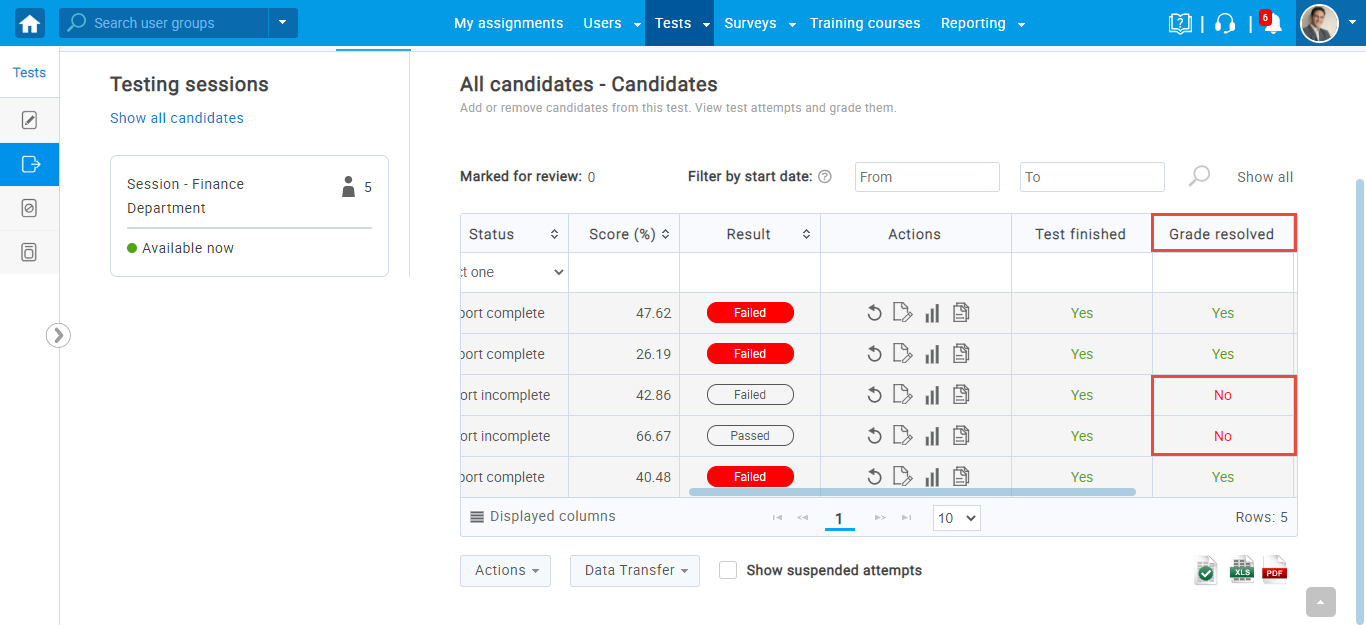
- Click on Open personal report for this candidate to grade essay questions.
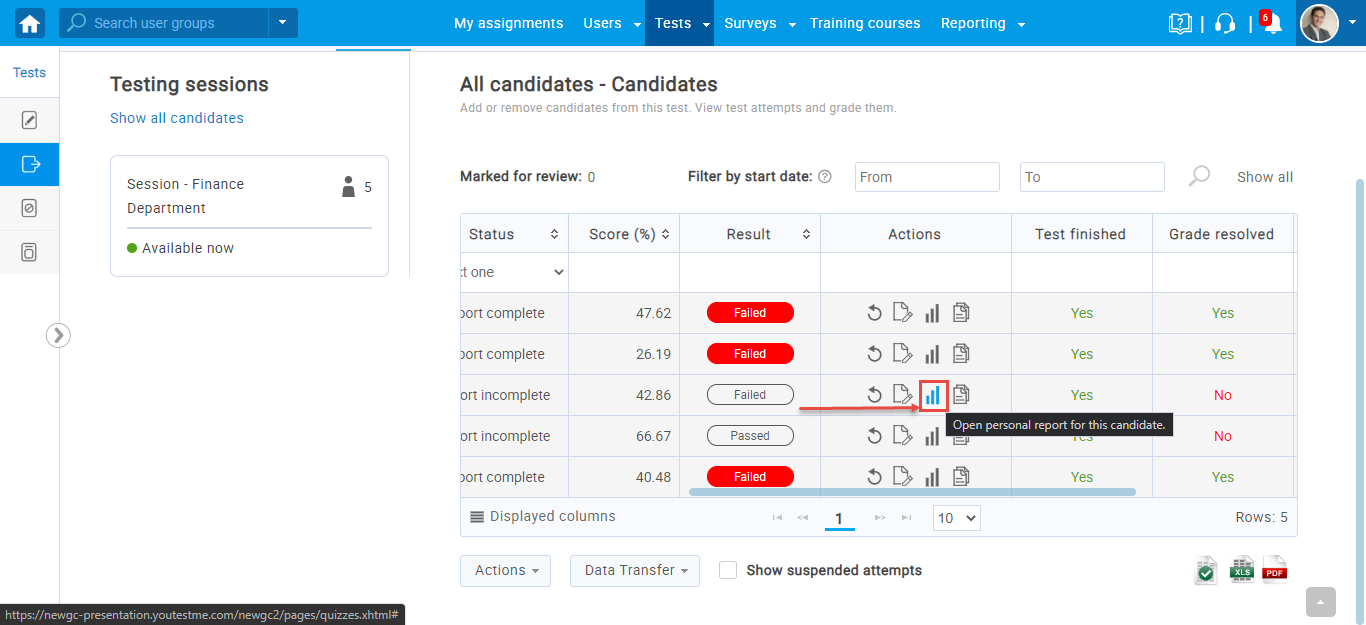
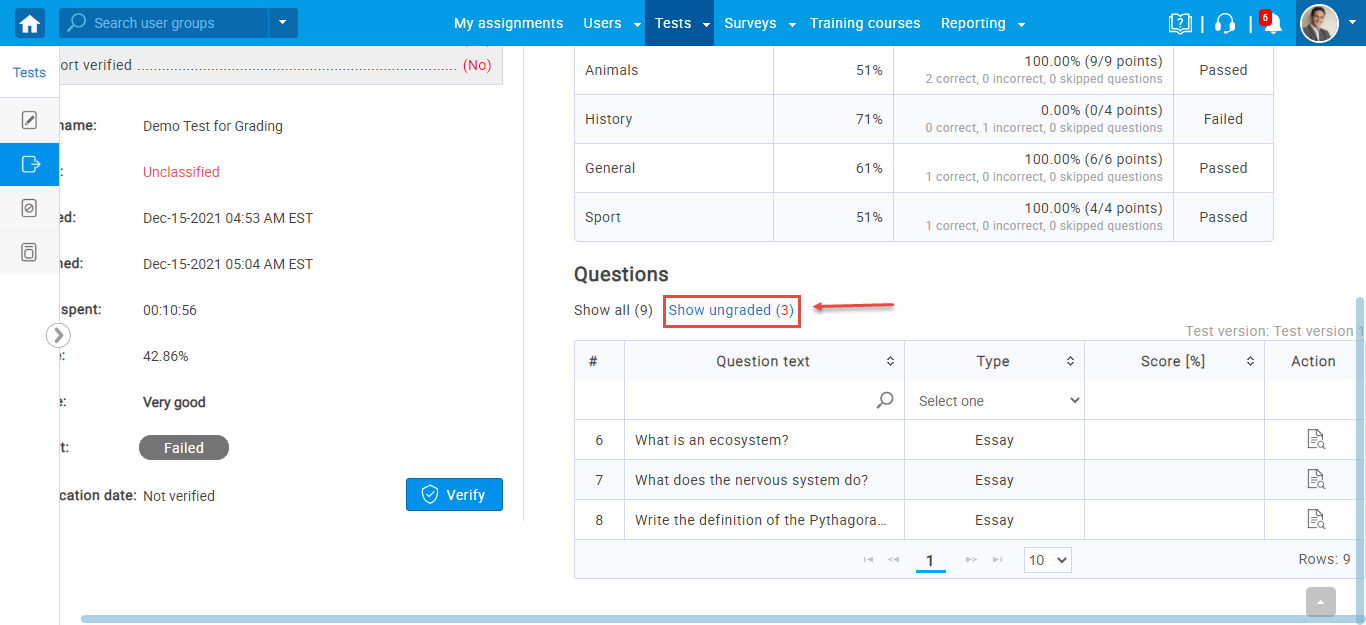
- When you open the report, under the Questions tab select Show ungraded.
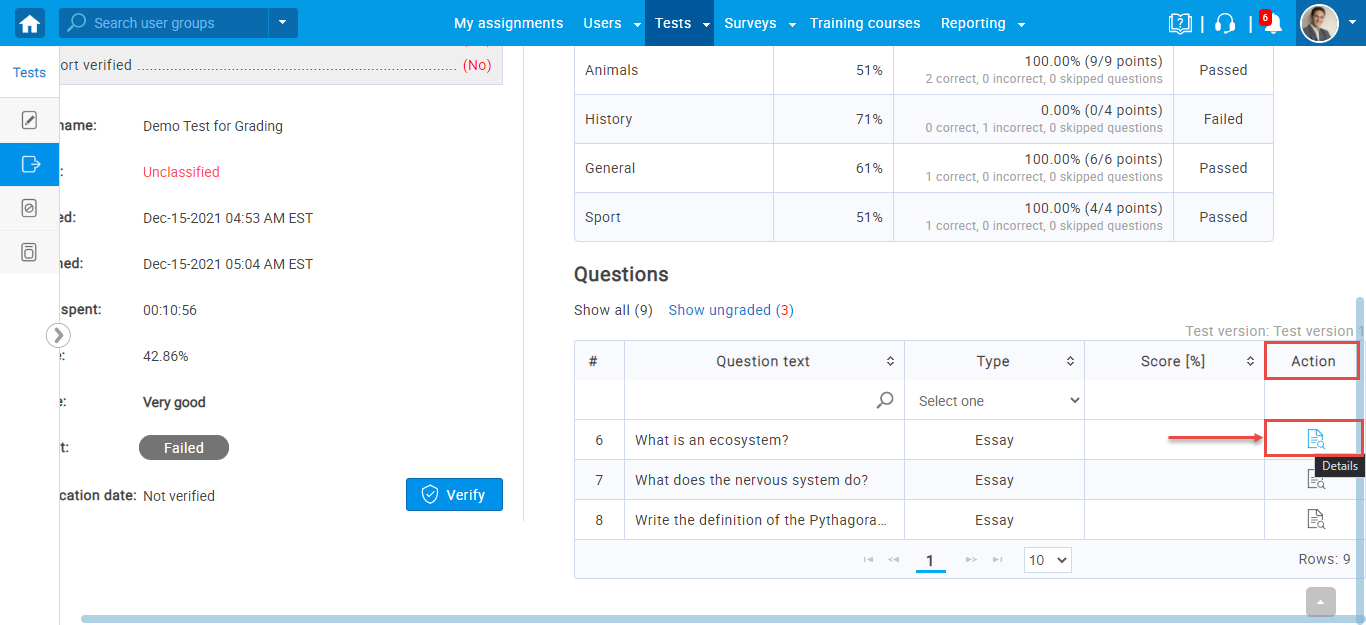
- Scroll to the right, and under the Action tab, select Details.
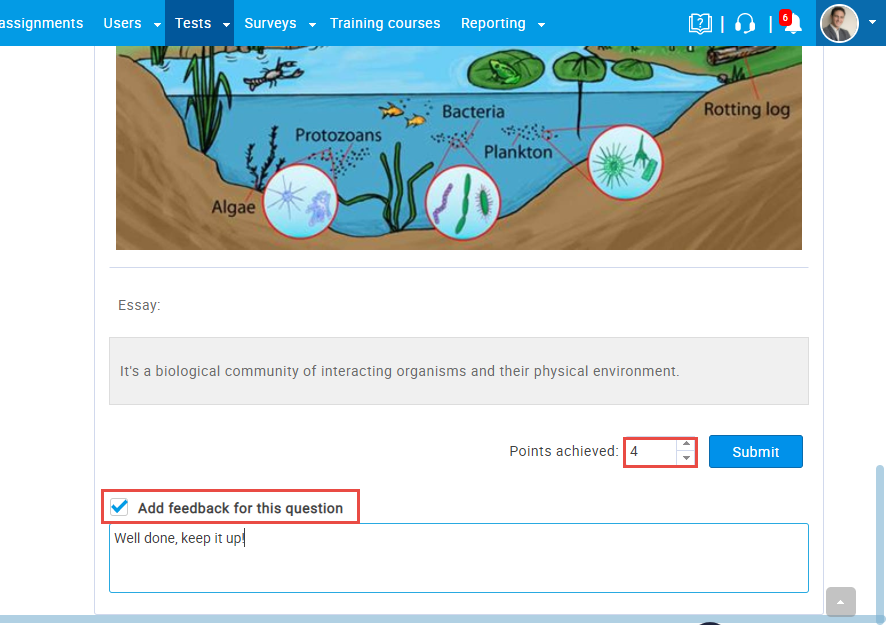
- You can grade questions and give feedback.
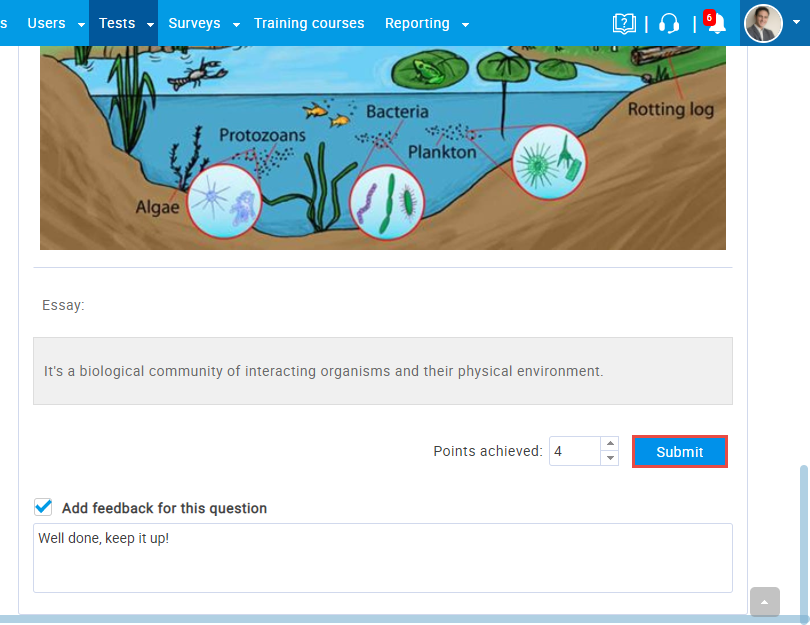
- Click on Submit and the grade is resolved.
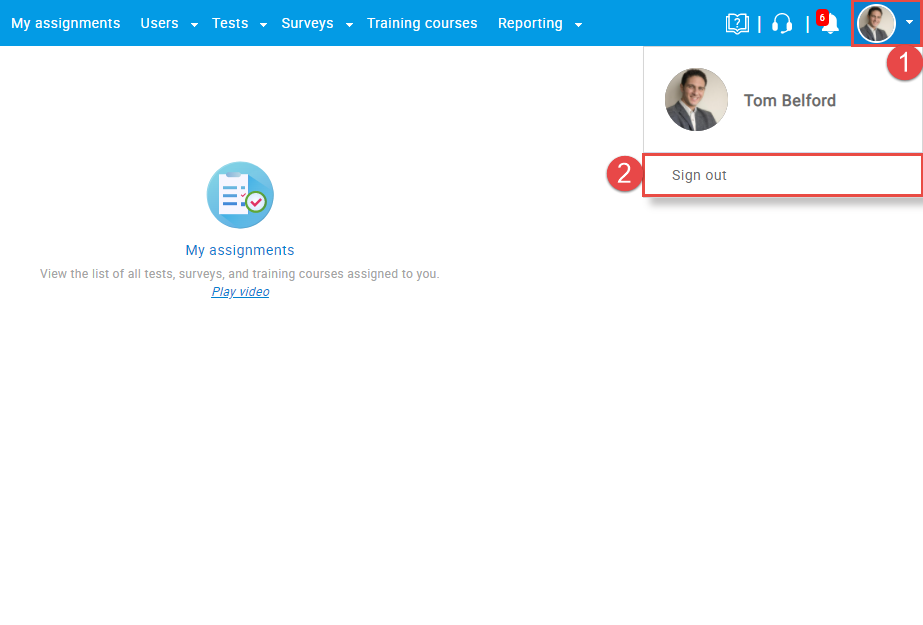
- Click on the graders’ profile icon and Sign out.
Grading process from Admins’ perspective
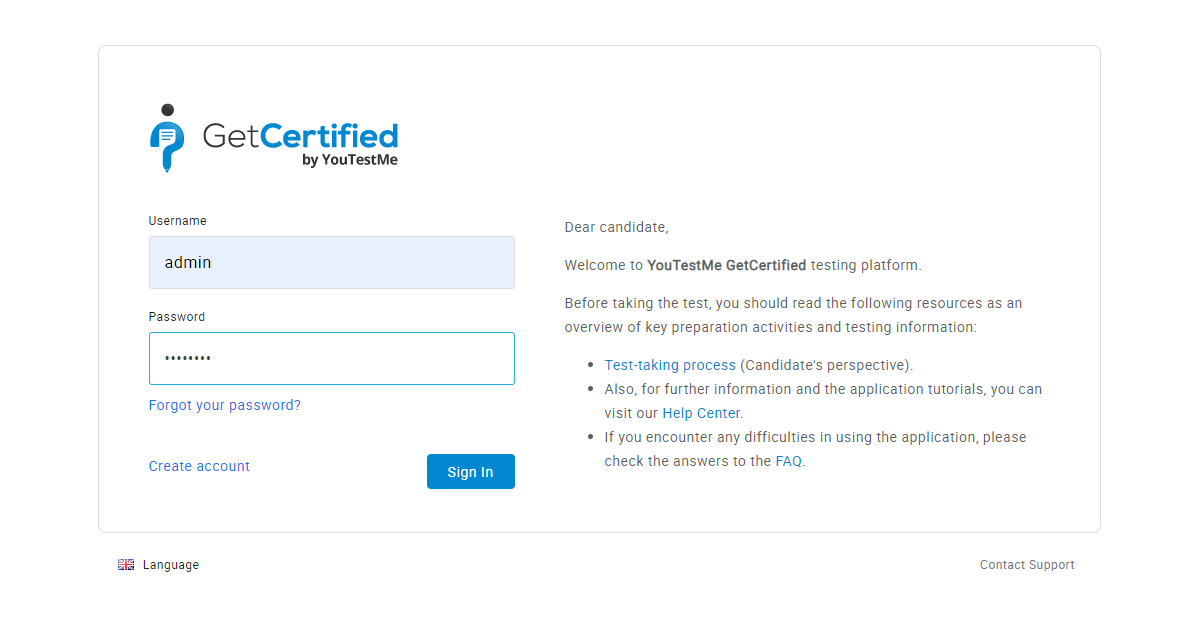
- Log in as admin:
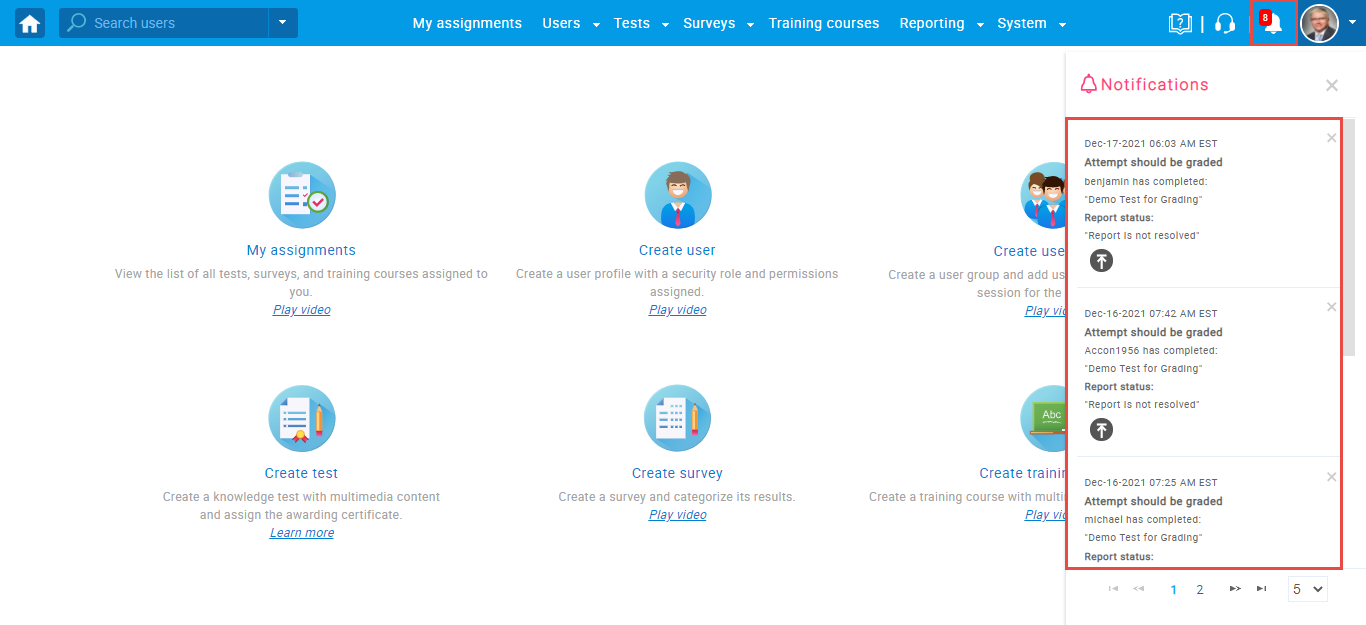
- Click on the Notifications tab and you can access attempts that should be graded directly from the tab.
- Go to Users and click on User groups.
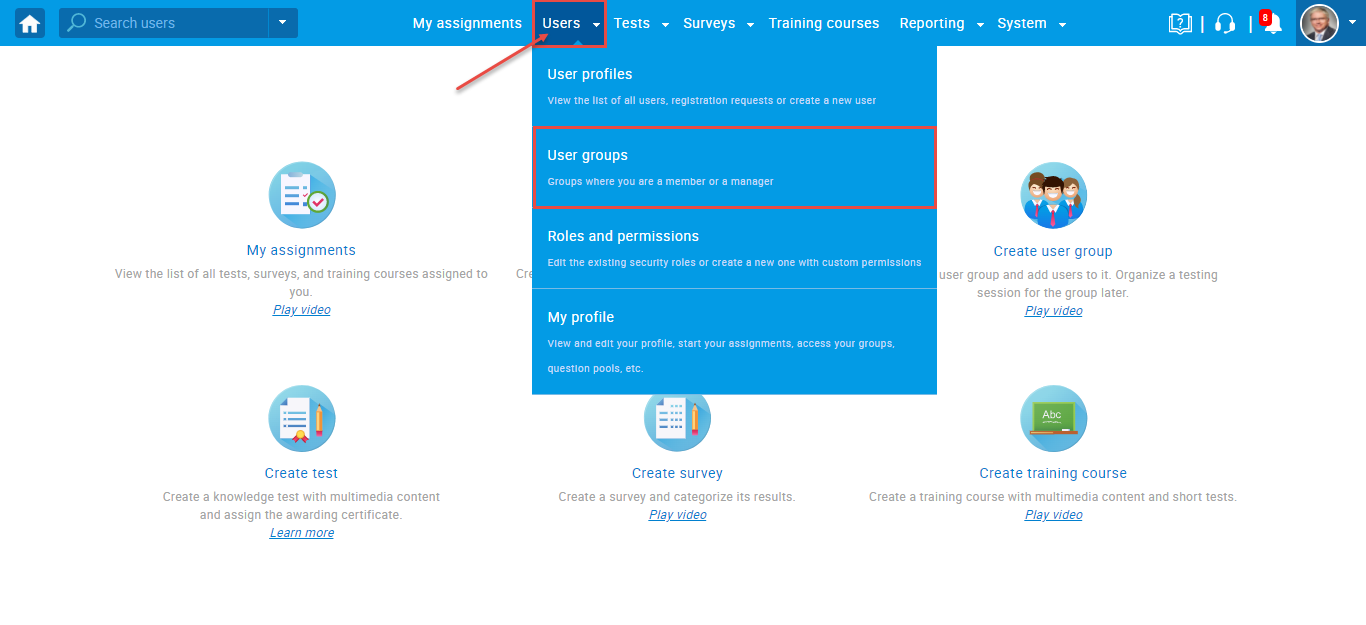
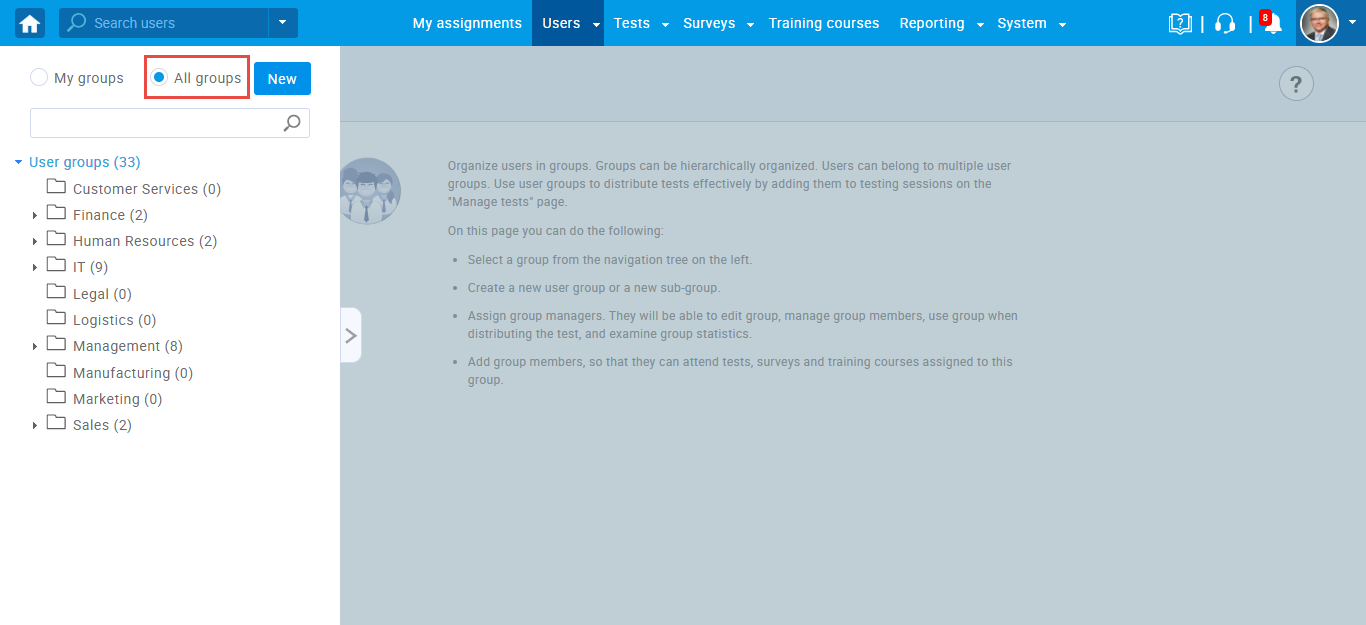
- Here, you can see that the admin can manage and see every user group in the system.
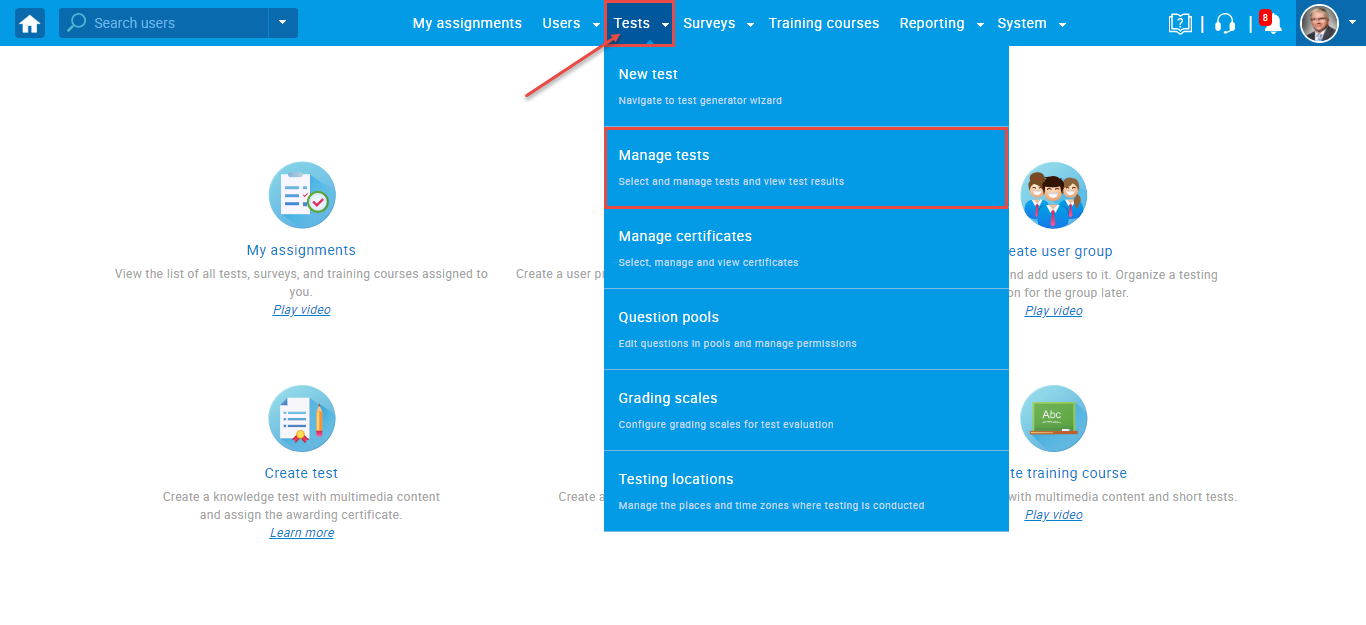
- Navigate to Tests and select Manage tests.
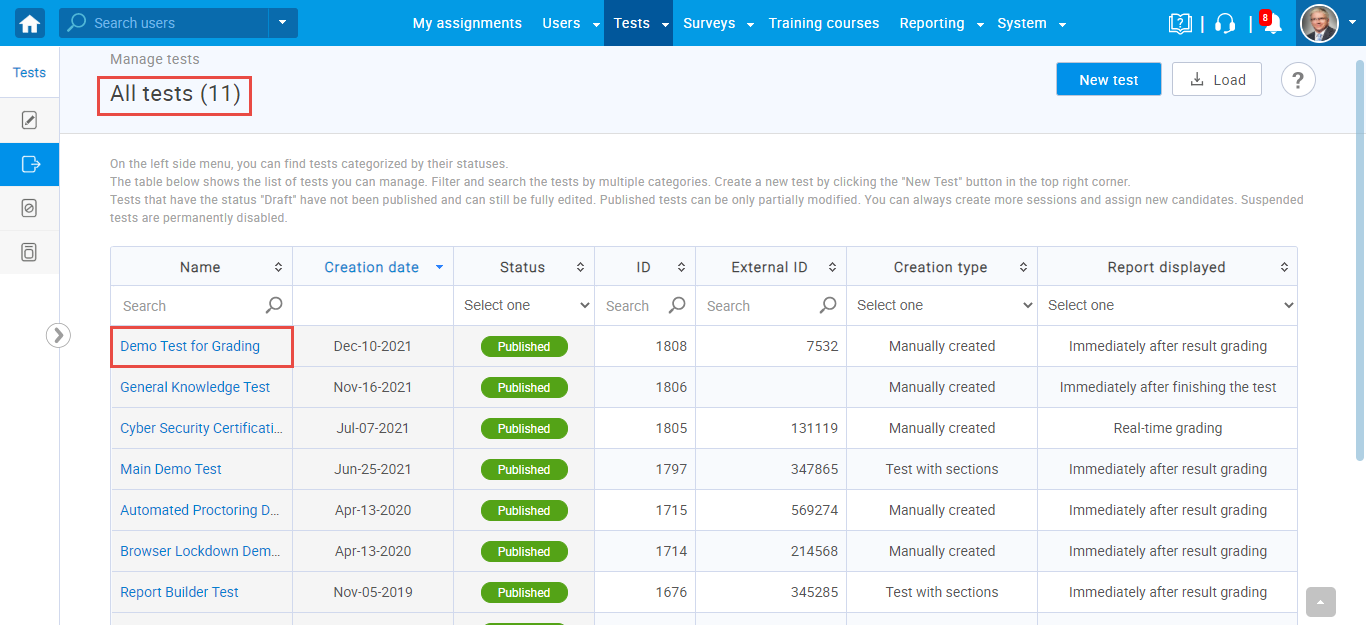
- As an admin, you can see and manage every test in the system. Select Demo Test for Grading.
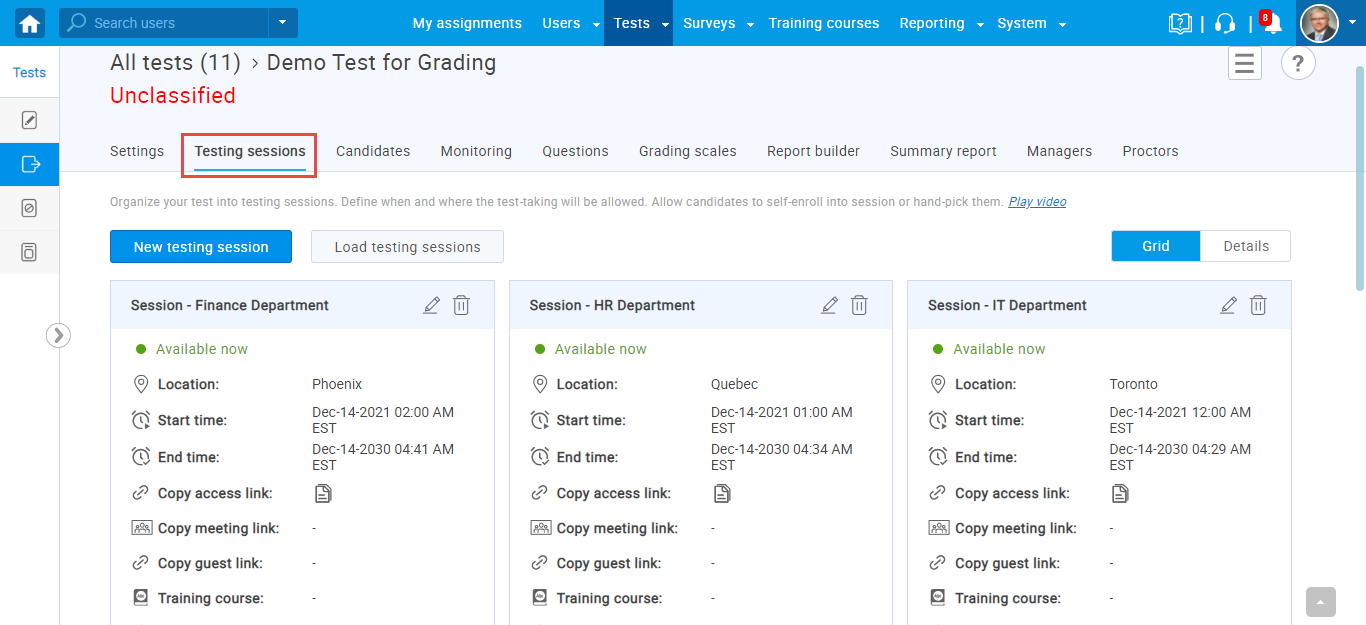
- Click on Testing Sessions and you can see every session made for this test.
- You can also see every candidate assigned to the test.
In conclusion, Grader is a role that can see and manage only user groups in which they are assigned as a group manager, and tests in which they are assigned as a grader. On the other hand, Admin can see and manage every test and user group in the system.